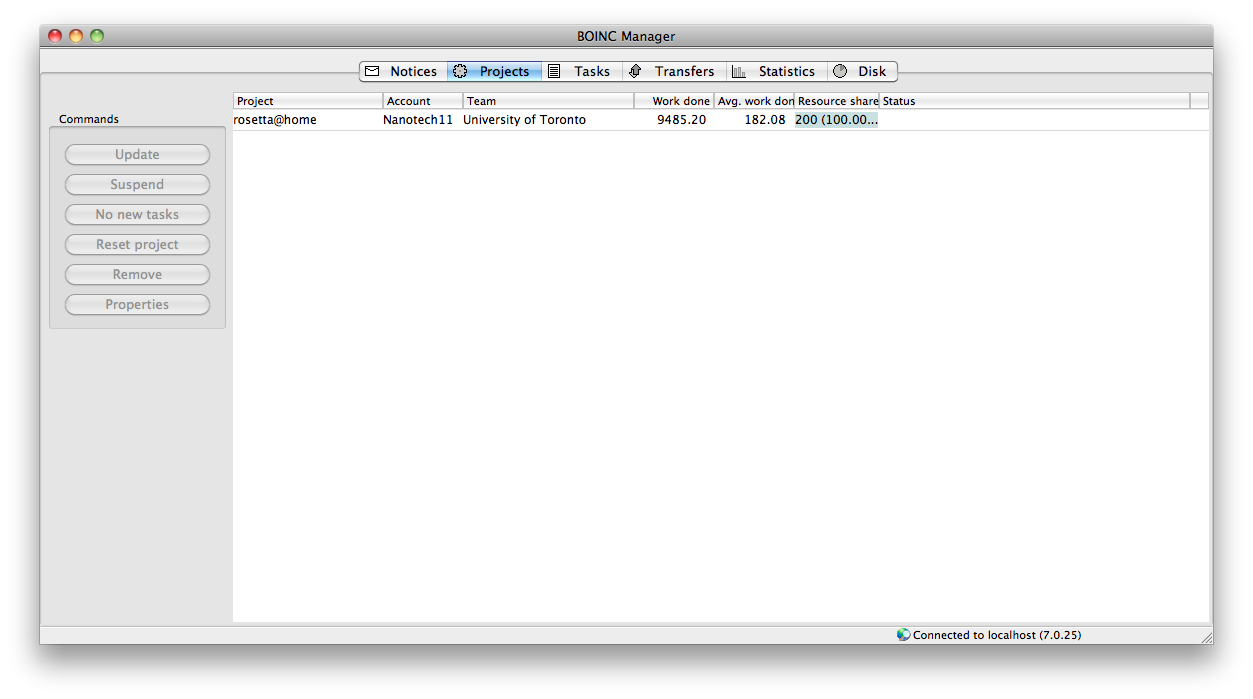
I was initially writing a post regarding the new 15'' macbook pros that came out very recently, but the more I started typing the more I realized that I kept referring how I was doing with my current setup (the early 2011 15'' macbook pro) so I decided to first have a post about my thoughts on the older model. I hope to do an update on my BOINC operations in another post (this one is quite length already).
So about a month ago I reinstalled the operating system, since when I first started using this computer all the data and settingswas transferred using the firewire 800 cable. THis to me wasn't as optimal since I was porting old settings into new hardware. Since it was the summer and I had a bit of free time I decided to erase the partition and reinstall. I've actually come up with a template of what files to backup (I'm going to post this at a later time), so overall the process was fairly efficient. It was mainly just waiting for files to transfer through ultra slow USB 2.0 (I wish I had a couple firewire 800 drives, alas).
Backing upIn terms of backup I actually came up with a new procedure. So I have three hard drives, one 250 GB, one 500 GB, and one 1 TB. Initially I would use time machine on the 250 GB hard drive to back up information on the 500 GB and 1 TB hard drives, as well as data on the macbook pro. Then I was thinking that backup was incremental, since it uses time machine. Though, I found that this method was not as efficient as I had hoped, where some files I rarely change (Ex: family videos). So the 250 GB time machine partition was actually taking up unnecessary space. In the new setup on the 250 GB hard drive I have a time machine partition and a blank partition. I use the blank partition as a one way synching device, to sync data from other drives to this one. This is since I do not require incremental backup for some files while for others (Ex: school documents, system files) do. I am also considering using google drive or dropbox to backup some of my school files online but I have not come to a final decision.
FilesyncAfter I made the blank partition I wanted to fine a free application that would do one way synching and I found an app called
filesync. Here's a quick screenshot of the application. It's nothing fancy and doesn't come with the spark and dazzle of many mac apps but it does the job and does it well.
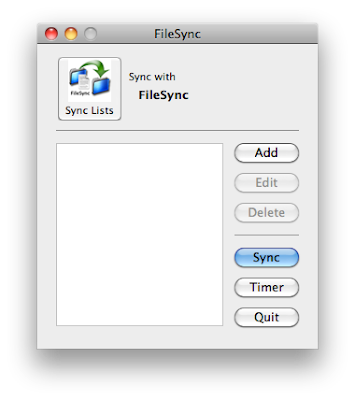
The interface is self explanatory. To sync folders one way you select the "add" button where this new dialog comes up.
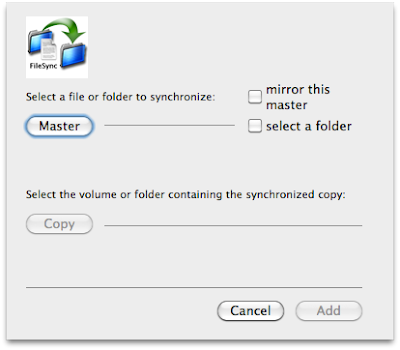
So it actually enables one way or two way sync. To have one way you choose a "master" file, and select to mirror the folder and its contents (which was what I had selected). Then later you select the "copy" option and the destination. You can do this with multiple files, and when ready click "sync" on the main menu. Then it starts to transfer files. One thing i thought could be improved about the application is that it didn't show the speed or the approximate time where the synching would complete. There was only a box showing which file was transferring and it did not mention where that file was located. But this was not a huge issue for me so I waited for it to finish.
Browsers (Firefox vs Chrome)After I reinstalled the operating system I was considering whether to switch browsers to google chrome as my main, because its load speed from the dock quicker than firefox. Plus its system performance is far better in terms of memory usage and processor percentage than firefox due to its architecture. I also found that most of the addons that I use on firefox are available on chrome. The adblocking functionality of chrome has also improved significantly since its inception. I also love using greasemonkey and stylish scripts on firefox, but on chrome I could install the scripts as is, without the extension. In the end I transferred my bookmarks over to google chrome, though over time I found some quirks of chrome that weren't exactly favorable.
The first thing I had an issue with as importing bookmarks. I used the built in browser option in google chrome to import my firefox bookmarks, but I found the function to be faulty. Some bookmarks were simply not transferred over to chrome (Ex: unsorted bookmarks folder), and what I had to in the end was export bookmarks using the bookmarks manager in firefox and import the file using chrome. This way all the bookmarks were imported correctly.
Second of all I had issue with was the bookmark manager in chrome. The firefox bookmarks manager was by no means perfect, so the mnanager-in-a-tab was a new experience for me. I personally favor having the bookmark manager as a tab because sometimes I like to compare folders, and having two managers open side by side (windows 7 style) really makes it easy to do so. But I had an issue with the bookmark manager (I'm not sure whether this "feature" is intended or not) where if I delete a bookmark or a folder I would need to refresh the page to see the changes. The first time that this happened it drove me crazy trying to find out what I had done wrong, because I had delete a folder but still saw it on the sidebar. That made me think that the folder was still there, and I had to keep trying to figure it out until I found out I just needed to press the refresh button to notice the changes.
Third (albeit an obvious one) was privacy issues. I really did not like how chrome kept all your history, download history, and other browser data until you clear it manually. There is no extension to clear them automatically, and I found it to be an annoyance. On firefox I had it set to delete everything on exit (even adobe flash information), for the sake of privacy. So theoretically if you go on facebook then close the browser, open it again the facebook will be at the login screen. I know there is an option on chrome to block some sort of third party content, but it was interferring with my youtube script so I had to leave it unselected. I also had to select all the features that would automatically send data to google, for example their instant search options.
Fourth was that the google chrome store is hard to browse for the addon you need (though I suppose this could theoretically be an issue on every browser). Just a couple days ago I tried to find an addon that could close the browser based on a timer that I can set. THis is because sometimes I like watching streams before I sleep and I fall asleep before closing the browser and stream. This would waste bandwidth and system resources (since I have a internet usage limit and I run BOINC at night). I could not find one in the end, though in retrospect it could have just been that such an extension was impossible to create. But I did try for a good 15-30 minutes.
Fifth was the zooming feature in chrome. If there's one thing I know firefox is doing extremely well it is the zoom feature. This is pretty much if a website's font is far too small you could just control/command +, to enlarge the text and page size. In comparison to firefox their zooming feature just falls short. SOmetimes I try to zoom in and the page warps and I can't see part of the page, or the text just doesn't zoom very wel. I know for many this might be an nonissue to but to me it was just plain annoying. I also noticed at times when I zoomed in chrome the website layout would be distorted.
Sixth was tab management. In firefox I have to keep an addon called "tab mix plus" to manage how my tabs behave, and the good thing is that chrome does many of the things by default, like right clicking a link and closing tabs to the right. However, when it came to many tabs I could barely see the tab at the top of the page. Firefox has a solution for this, where you can scroll left and right to see all the tab names and I hope chrome comes up with a solution as well.
As of now I still have chrome as my default browser, because I like opening links from my rss feeds into chrome, which has better memory performance than firefox. But for browsing and actually logging into sites I still use firefox. So right now I use the two browsers side by side. I use safari once in a while to access pages I want to support with ad content, since I have adblocker on chrome and firefox. So an example would be some streams, but I've noticed that when the flash ads come it takes up a lot of processor activity, which I am not very happy about.
General ApplicationsDuring every renewal of the operating system I look through my applications folder and decide which apps I didn't really need. Startup applications are especially important since they influence booting time, but right now I have seven start up items. I had fewer items before but as time went on I just kept adding more. They include, BOINC, gfx cardstatus, sparrow, growl, alfred, flux, bettertouchtool, and istat menus.
I've had all of these applications running at startup before, though alfred is a new one (I installed it for the first time after the reinstall). Alfred is similar to quicksilver in that it's an application and file launcher. I switched mainly because I found quicksilver to be slow, even though developer updates were coming. I wanted to see what else was on the app market so I decided on alfred, which had good reviews. I'm sure there are numerous reviews out there, but I mainly use alfred for opening applications, setting up key triggers for launching folders in the finder, and to open and browse finder items. One thing I really like about alfred is that it uses the built in spotlight index, while quicksilver it had its own database.
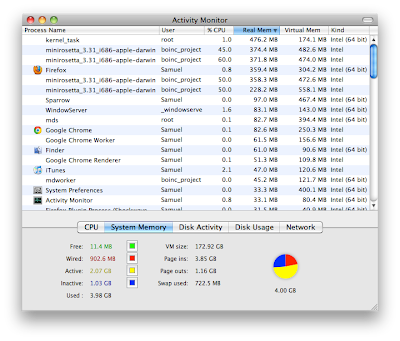
HardwareIn everyday performance I'm quite satisfied with the macbookpro, though if I had a wishlist I wouldn't mind having a SSD (I'm eyeing the 256 GB one in the newer model), but a more pragmatic approach would be just to geta 7200 rpm drive instead of 5400 rpm (which I currently have). I have yet to do research on heat issue (which should be minimal from what I've found so far), but I have no plans to upgrade since the current hard drive is working fine. Also, out of 500 GB I've used roughly 292 GB of it, in part due to the windows partition (100 GB), and the rest from the mac partition. I tend to max out my RAM pretty often because of BOINC using a huge chunk of it.
Here's how it looks in activity monitor 90% of the time (sometimes I need to snoozequit BOINC if I really need more memory for the browser).
I find that when the discrete graphics card is on (AMD Radeon 6490M), the computer gets noticeably hotter. Recently I've been running gfx cardstatus to force the gpu as the integrated one, which I did last summer as well. I notice the computer being a few degrees cooler that way, which is good for BOINC (I don't like BOINC running my computer too hot since after all it is a laptop).
For my previous macbook pro I was hugely disappointed in the batter capacity and how fast it degraded. Here's a shot from the coconut battery app.
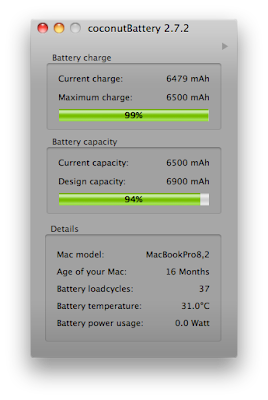

As you can see the new batteries are far superior to the old sony removable batteries I've had in the past. It's been well over a year but the capacity has only changed by a couple of percentages. The loadcycles for the computer is still fairly low, but I try to put it on batter once in a while and let it run for a bit (until 70-80%) then charge it back up. I also try to calibrate the battery once in a long while, though this is more of a challenge now with the larger battery capacity. It takes a very long time for the battery to finish, really.
As an ending note here's a screenshot of my desktop. I've been using another wallpaper for some time, but I recently looked at apple's collection and I liked the new mountain lion wallpaper due to the cooler colours. I just found it wasn't as "busy" as the lion wallpaper.

So I'd say, one year later, computer is still as snappy, and no hardware issues.
Why not upgrade to Mac OS Lion?One last point, regarding "upgrading" to lion. In the past I've been pretty eager to upgrade to new releases of Mac OS X, but this time I've been more cautious. I've read many reviews of lion and even though some features are cool (Ex: filevault 2) overall I do not consider it an upgrade over snow leopard. I suppose the upgrade is "necessary" if you are an iPhone perhaps icloud user, because snow leopard sadly does not support icloud (which still baffles me by the way). Because, in the end, despite such enticing features there's just some functionality in lion that I think would drive me crazy. I am not a big fan of the new document saving system at all, where having backup copies of the document is good but taking out the "save as" dialog is not the way to go.
I also dislike the new "mission control" feature in lion, where I see spaces and expose is a far more efficient way of handling open windows and applications than mission control. I've tried out Mac OS Lion at the apple store and it just baffled me how I could move a window to another space, but I could not move the window back. Taking out an easy way to access assigned spaces is also a step backwards from apple.
Having a full screen is a new feature, but I've read so many threads where a secondary display is attached to the laptop, and in full screen it just adds that fabric-like background to the secondary display. THis misstep, to me, is horrifying. How could apple not take this seriously (there is still no fix in lion) and I'm not even sure whether they consider this a real issue.
The loss of rosetta is another thing; I have jam packs and during their installation rosetta is required. It's not even third party software but in lion I would be unable a piece of software from apple itself, which makes me uneasy.
I've considered the pros and cons of installing Mac OS Lion for a long time now (I have a copy of it). Even though I like to be on the latest and "greatest" I feel that snow leopard, despite its age, outperforms lion in terms of providing the optimal desktop experience.